
HiFiBerry DAC
This is the setup for the DAC:
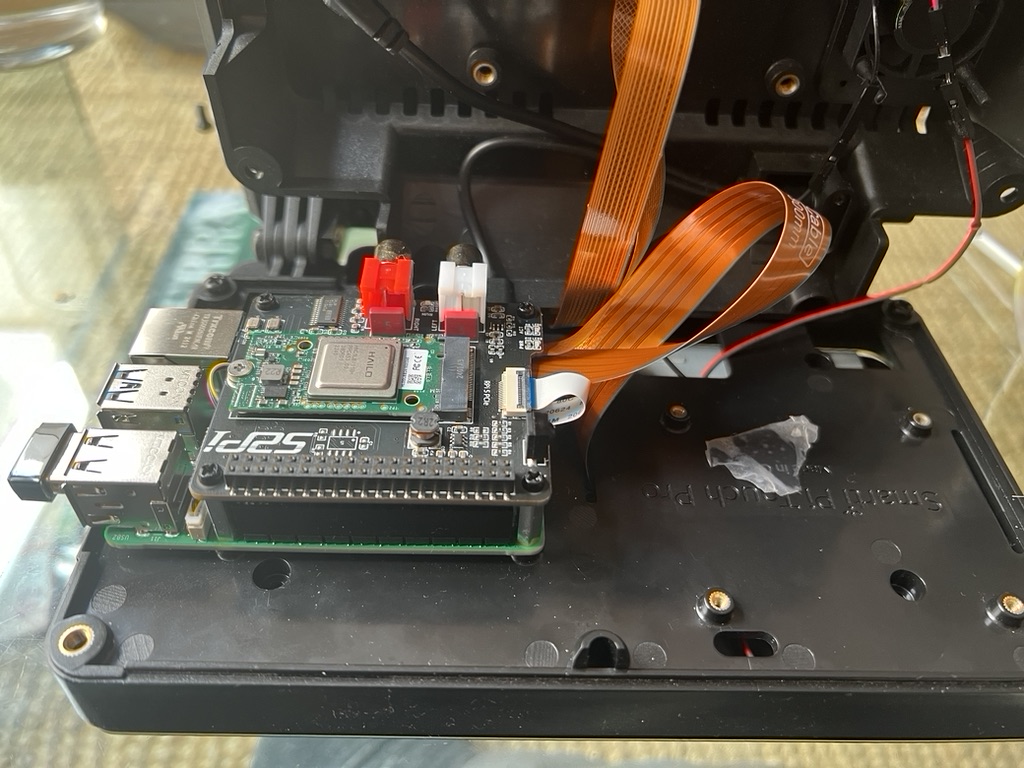
https://wiki.52pi.com/index.php?title=EP-0218
Modify /boot/firmware/config.txt
dtoverlay=hifiberry-dacplus-std
View the audio devices configured:
aplay -l
**** List of PLAYBACK Hardware Devices ****
card 0: vc4hdmi0 [vc4-hdmi-0], device 0: MAI PCM i2s-hifi-0 [MAI PCM i2s-hifi-0]
  Subdevices: 1/1
  Subdevice #0: subdevice #0
card 1: vc4hdmi1 [vc4-hdmi-1], device 0: MAI PCM i2s-hifi-0 [MAI PCM i2s-hifi-0]
  Subdevices: 1/1
  Subdevice #0: subdevice #0
card 2: sndrpihifiberry [snd_rpi_hifiberry_dacplus], device 0: HiFiBerry DAC+ HiFi pcm512x-hifi-0 [HiFiBerry DAC+ HiFi pcm512x-hifi-0]
  Subdevices: 1/1
  Subdevice #0: subdevice #0
To use the HiFiBerry DAC+ as the audio output device (card 2, as shown above), set it as the default card by creating or editing the /etc/asound.conf file with the following configuration:
defaults.pcm.card 2
default
To test the configuration, (even though an amp speakers are not connected) by generating a simple audio tone and sending it to the HiFiBerry DAC+ to confirm that it's working correctly:
-
Install
soxUtilitysoxis a utility that can be used to generate test tones.sudo apt-get install sox -
Generate a Test Tone
Use
soxto generate a sine wave of 440 Hz (which is the A note commonly used for tuning instruments):play -n synth 5 sine 440This command will generate a 440 Hz sine wave tone for 5 seconds. By default, it will play through the default audio device, which should be the HiFiBerry DAC+.
-
Specify Audio Device Using
aplayTo be more specific. use
aplaydirectly. :-
Create a WAV File:
sox -n -r 44100 -c 2 test.wav synth 3 sine 440This will create a file called
test.wavwith a 3-second 440 Hz sine wave. -
Play the File Using HiFiBerry:
aplay -D hw:2,0 test.wav

Playing WAVE 'test.wav' : Signed 32 bit Little Endian, Rate 44100 Hz, Stereo
Here,
hw:2,0refers to the hardware card 2, device 0 (the HiFiBerry DAC+).
-
If there are no errors in these commands, it confirms that the setup is working correctly at the software level.